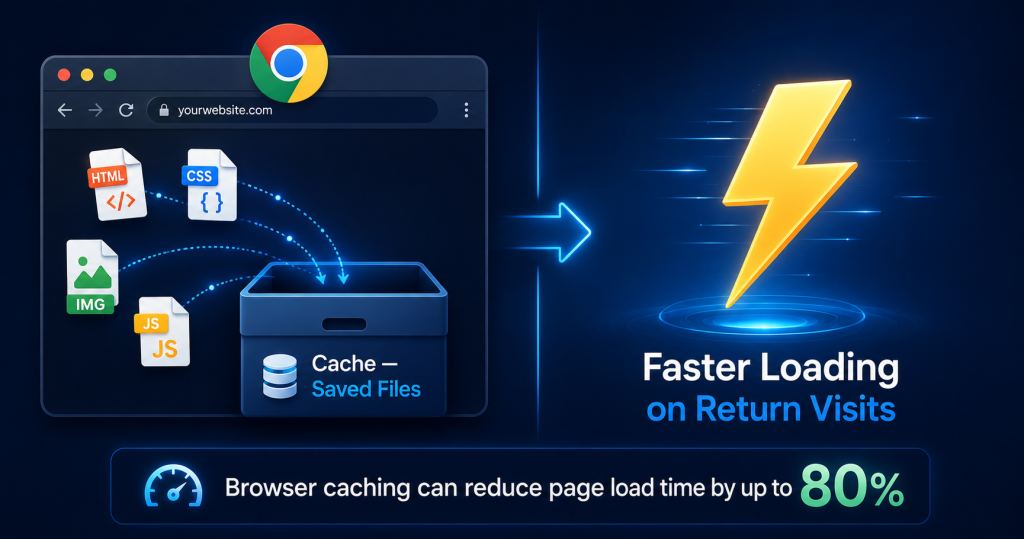
Have you ever noticed that websites load much faster the second time you visit them compared to the first time? Or wondered why your browser sometimes shows you an outdated version of a webpage even after the website has been updated?
Both of these experiences are directly caused by a feature called the browser cache. Browser caching is one of the most powerful — yet least understood — web technologies that affects every internet user, every website owner, and every SEO professional.
In this complete guide, you will learn exactly what browser cache is, how it works, why it matters for website performance and SEO, the types of browser cache, how to clear it in every major browser, and how to properly configure caching for your own website in 2026.
Table of Contents
What Is Browser Cache? (Definition)
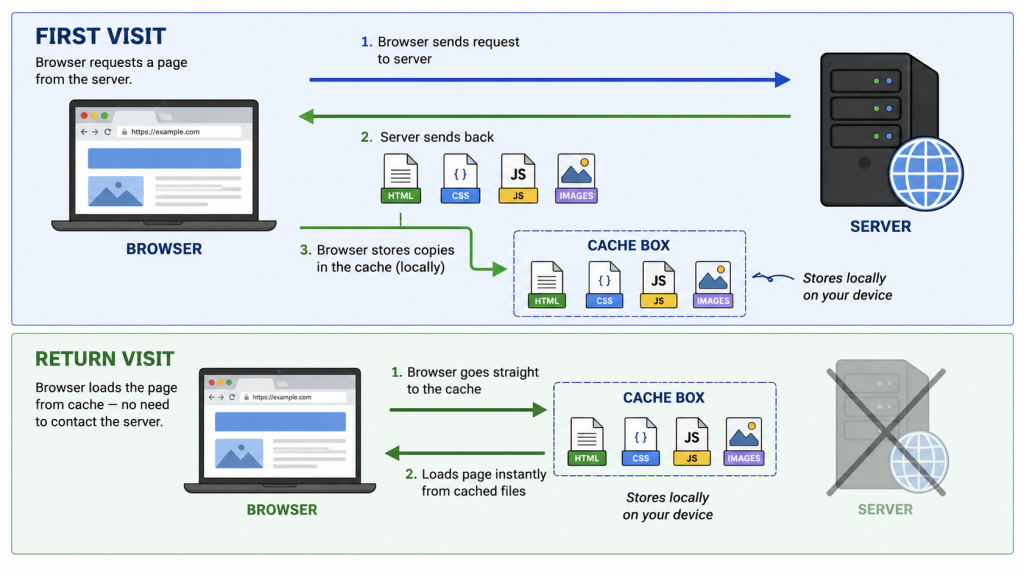
Browser cache (pronounced ‘cash’) is a temporary storage location on your device — your computer, phone, or tablet — where your browser saves copies of web page files that you have recently visited. These saved files include HTML documents, CSS stylesheets, JavaScript files, images, videos, fonts, and other web resources.
When you visit a website for the first time, your browser downloads all of the files needed to display that page and stores copies of them in the cache. The next time you visit the same website, instead of downloading everything all over again from the server (which takes time and bandwidth), your browser simply retrieves the saved files from the local cache — making the page load significantly faster.
Simple Definition:
Browser cache is your browser’s local storage of website files — allowing previously visited websites to load faster on return visits by retrieving saved copies rather than re-downloading everything from the internet.
Technical Definition:
Browser cache is a client-side caching mechanism that temporarily stores HTTP responses (HTML, CSS, JavaScript, images, fonts) on a user’s device. Cache behaviour is controlled by HTTP cache-control headers sent by web servers, which specify how long each resource should be stored.
The Best Analogy:
Imagine you are a student who visits the school library every day. On your first visit, you borrow a textbook, carry it home, and make a photocopy for reference. On every subsequent visit, instead of going back to the library to borrow the same book again, you use your photocopy — saving time and effort. Your photocopy is the browser cache.
How Does Browser Cache Work? (Step-by-Step)
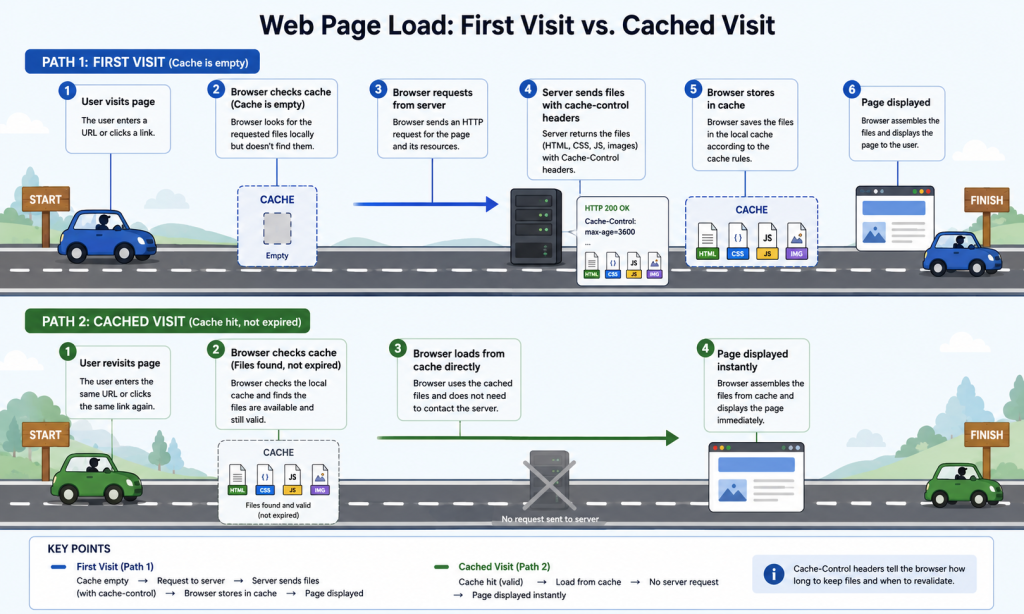
Understanding how browser cache works requires understanding a conversation between your browser and a web server. Here is the complete step-by-step process:
Part 1 — First Visit to a Website
- You type a URL (e.g., expantrix.com) into your browser and press Enter.
- Your browser sends an HTTP request to the web server hosting the website.
- The web server processes the request and sends back the requested files (HTML, CSS, JS, images) along with HTTP response headers — including cache-control instructions like how long to store these files.
- Your browser displays the webpage using the received files.
- Simultaneously, your browser stores copies of those files in the local cache on your device.
Part 2 — Return Visit to the Same Website
- You visit the same URL again (or navigate to it from a link).
- Before sending a request to the server, your browser checks its cache: ‘Do I already have files for this URL? Are they still valid?’
- If the cached files are found AND have not expired (based on the server’s cache-control headers), the browser loads the page directly from the local cache — without any network request. This is called a cache HIT.
- If the files have expired or are missing from cache, the browser sends a new request to the server. If the files haven’t changed on the server, the server responds with a ‘304 Not Modified’ response — telling the browser to use its cached copy. This is called a conditional request.
- If the files have changed, the server sends the new versions, and the browser updates its cache.
💡 PRO TIP: Browser developers tools (F12 → Network tab) show you exactly which resources loaded from cache (shown as ‘disk cache’ or ‘memory cache’) vs. from the server. This is essential for website performance debugging.
What Does Browser Cache Store?
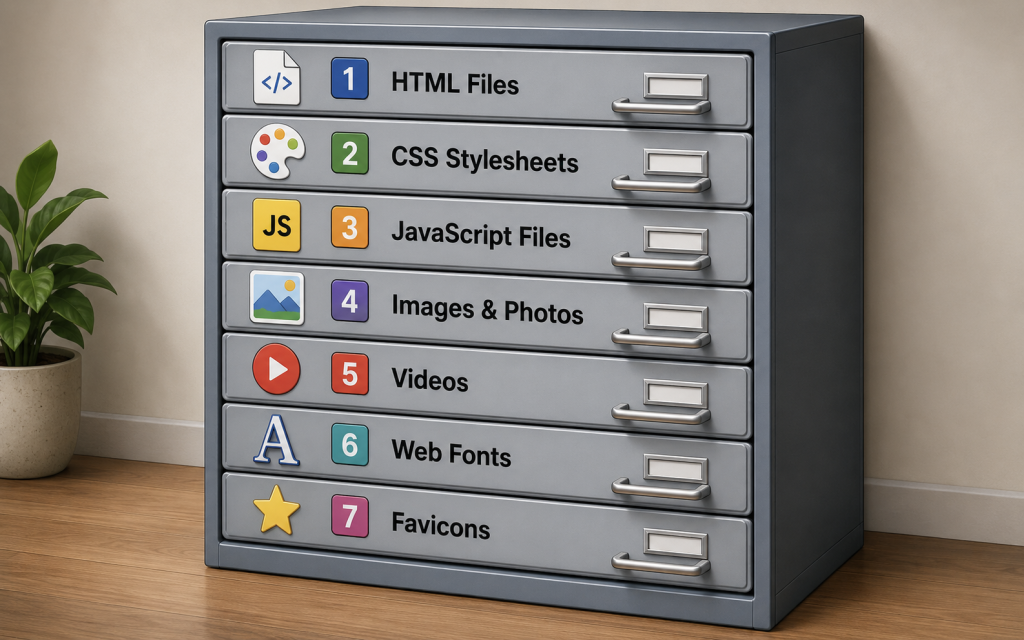
Browser cache stores a wide range of file types. Here is a complete breakdown of what gets cached and why:
| File Type | What It Is | Why It’s Cached |
|---|---|---|
| HTML Documents | The structural markup of web pages | Avoids re-downloading the page skeleton |
| CSS Stylesheets | Style rules that control visual appearance | Prevents re-applying all design rules on every visit |
| JavaScript Files | Code that adds interactivity and functionality | Large JS files take time to download; caching saves bandwidth |
| Images (JPG/PNG/WebP) | Photos, graphics, illustrations | Images are often the largest files on a page; caching them drastically speeds up loading |
| Web Fonts | Custom typography fonts (Google Fonts, etc.) | Font files are repeatedly used; caching eliminates re-downloads |
| Video Files | Embedded videos hosted on the same domain | Prevents buffering on repeated views |
| Favicons | Small browser tab icons | Tiny but requested on every page visit |
| API Responses | Data returned from API calls | Caching data responses reduces server load |
| Service Worker Data | Progressive Web App offline data | Enables offline functionality |
What Browser Cache Does NOT Store:
- Login sessions and authentication tokens (these use secure cookies, not cache)
- Form data and POST request responses
- HTTPS certificates (stored in a separate security store)
- Browsing history (stored separately from cache)
- Passwords (stored in a separate password manager)
Types of Browser Cache
Not all browser cache works the same way. There are several distinct types, each serving a different purpose:
1. Memory Cache (RAM Cache)
Memory cache stores resources in your device’s RAM (Random Access Memory). It is the fastest type of cache — resources load almost instantaneously. However, memory cache is cleared when you close the browser tab or the browser application.
- Speed: Fastest
- Duration: Until browser tab/window is closed
- Best for: Resources used multiple times within a single browsing session (CSS, JS, commonly used images)
2. Disk Cache
Disk cache (also called browser cache or HTTP cache) stores resources on your device’s hard drive or SSD. It persists across browser sessions — meaning the cached files are still there even after you close and reopen the browser.
- Speed: Fast (slower than RAM but much faster than downloading)
- Duration: Until expiry (set by cache-control headers) or manual clearing
- Best for: All types of web resources for return visits
3. Service Worker Cache
Service workers are JavaScript scripts that run in the background and intercept network requests. They can programmatically cache resources and serve them offline. This is the technology behind Progressive Web Apps (PWAs) that work without an internet connection.
- Speed: Very fast
- Duration: Controlled by the service worker script
- Best for: Progressive Web Apps, offline-capable websites
4. Push Cache
Push cache is a temporary cache used by HTTP/2 Server Push — a feature that allows servers to proactively send resources to the browser before they are requested. Push cache is only used within a single HTTP/2 session.
- Speed: Very fast
- Duration: Only for the current HTTP/2 session
- Best for: Proactive resource delivery
| Cache Type | Storage Location | Persistence | Best Use Case |
|---|---|---|---|
| Memory Cache | RAM | Until tab/browser closed | Session-use resources |
| Disk Cache | Hard drive/SSD | Days to months | All web resources for return visits |
| Service Worker | Managed by JS | Programmatically controlled | PWAs, offline functionality |
| Push Cache | HTTP/2 session | Current session only | Proactive resource delivery |
Browser Cache vs. Cookies — What’s the Difference?
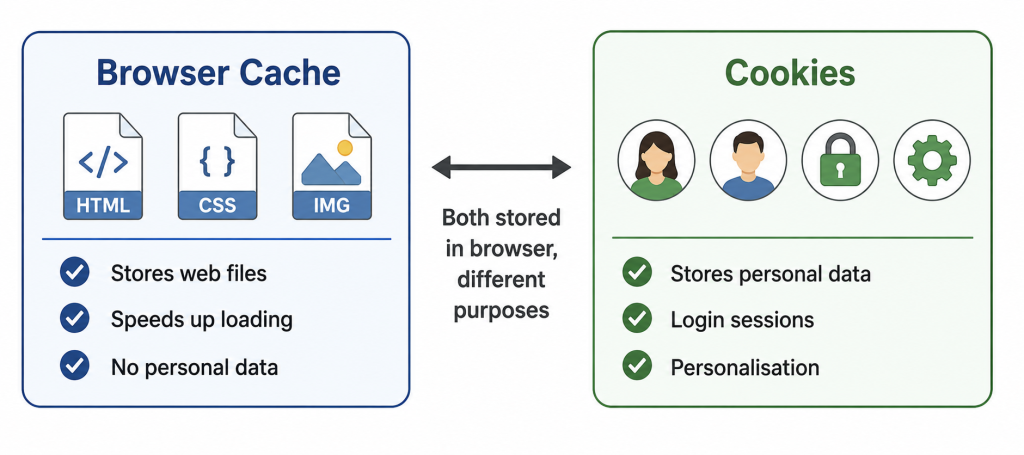
Browser cache and cookies are both stored in your browser, but they serve completely different purposes. This is one of the most commonly confused distinctions in web technology.
| Factor | Browser Cache | Cookies |
|---|---|---|
| Purpose | Stores website files to speed up loading | Stores small pieces of data about the user |
| Content | HTML, CSS, JS, images, fonts | Login sessions, preferences, tracking data |
| Set by | Browser (based on server cache-control headers) | Websites via Set-Cookie HTTP header or JavaScript |
| Contains Personal Data? | No — only files | Yes — user-specific data |
| Privacy Impact | Low — just saved files | High — can track user across sessions |
| Size | Can be megabytes to gigabytes | Limited to 4KB per cookie |
| Shared with server? | No — stays on device | Yes — sent back to server with every request |
| Cleared by | ‘Clear cache’ in browser settings | ‘Clear cookies’ in browser settings |
| GDPR Impact | Generally not required under GDPR | Requires cookie consent under GDPR |
Key Takeaway: Clearing your cache removes saved website files (speeds up fresh loading). Clearing cookies logs you out of websites and removes personalisation data.
Why Is Browser Cache Important?
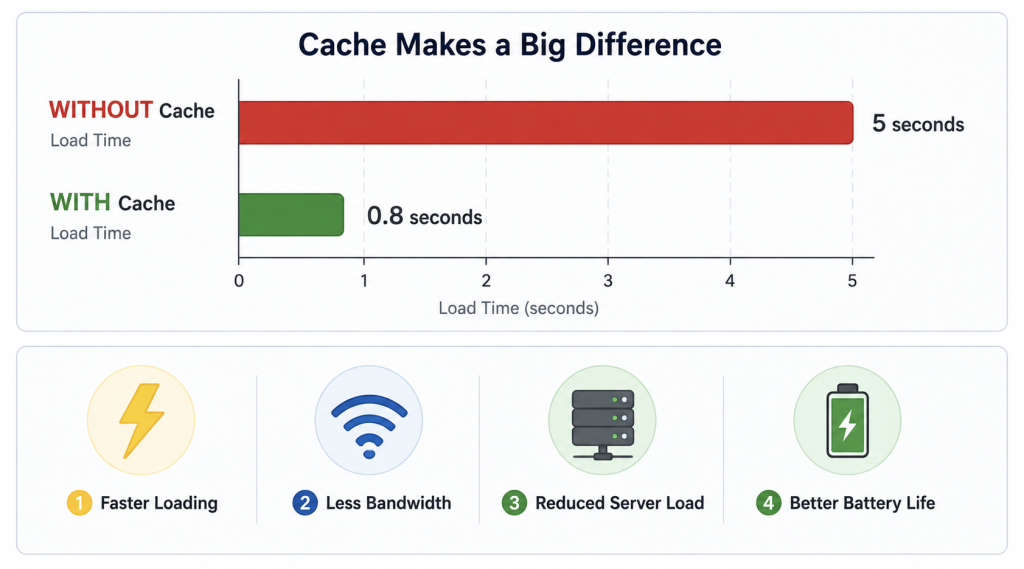
Browser caching provides significant benefits for website visitors, website owners, and server infrastructure. Here is why it matters:
1. Dramatically Faster Page Load Times
This is the most obvious benefit. When resources are served from cache rather than downloaded from a server, page load times drop dramatically. Research shows that a cached page can load 3–10× faster than a non-cached page.
Studies by Google show that 53% of mobile users abandon a website if it takes more than 3 seconds to load. Browser caching directly reduces this abandonment risk.
2. Reduced Bandwidth Consumption
Every time a resource is loaded from cache instead of the server, data transfer is avoided. This benefits both visitors (lower data usage on mobile plans) and website owners (lower bandwidth costs from the hosting provider).
3. Reduced Server Load
Without caching, every page visit requires the server to send all resources again. With caching, return visitors retrieve most resources locally — dramatically reducing the number of requests the server must handle. This means the server can handle more visitors simultaneously.
4. Better User Experience
Fast-loading pages provide a better experience for users. They can navigate between pages, return to previously visited sections, and scroll through content without frustrating wait times.
5. Lower Energy Consumption
Fewer network requests mean less data transferred, which translates to lower energy consumption — both on the user’s device (better battery life on mobile) and in data centres (reduced carbon footprint).
✅ SEO TIP: Google’s research consistently shows that faster page load times lead to higher engagement, lower bounce rates, and better conversions. Every second faster = better business outcomes.
Browser Cache and SEO — The Critical Connection
Browser cache has a direct and significant impact on your website’s SEO performance. Here is exactly how they are connected:
1. Page Speed Is a Direct Google Ranking Factor
Google has confirmed that page speed — specifically Core Web Vitals (LCP, INP, CLS) — is a direct ranking signal. Browser caching is one of the most effective ways to improve page speed for returning visitors, directly improving your Core Web Vitals scores.
2. Lighthouse and PageSpeed Insights Scores
Google’s Page Speed Insights tool (and Lighthouse) explicitly checks for proper browser caching configuration and deducts points if resources lack cache-control headers. A ‘Serve static assets with an efficient cache policy’ recommendation in Page Speed Insights means your site needs better caching configuration.
3. Bounce Rate and Dwell Time
Slow websites cause users to leave before the page even loads (bounce). High bounce rates signal to Google that users are not finding your content valuable, which can hurt rankings. Browser caching keeps pages fast, reducing bounce rate and increasing dwell time — both positive SEO signals.
4. Crawl Budget Efficiency
Google’s crawler (Googlebot) has a limited amount of time to crawl your website — this is called crawl budget. Slow server response times (caused by not caching) can eat into your crawl budget, meaning fewer of your pages get indexed. Proper server-side caching (not just browser caching) directly improves crawl efficiency.
5. Core Web Vitals — Specific Impact
| Core Web Vital | What It Measures | How Caching Helps |
|---|---|---|
| LCP (Largest Contentful Paint) | Time for the largest visible element to load | Cached images and CSS load instantly, improving LCP |
| INP (Interaction to Next Paint) | How quickly the page responds to user interaction | Cached JS files execute faster, improving INP |
| CLS (Cumulative Layout Shift) | Visual stability of the page | Cached fonts and CSS prevent layout shifts during load |
✅ SEO TIP: For expantrix.com: Install WP Rocket or W3 Total Cache plugin to enable browser caching. RankMath’s performance features also help. Check your current caching status via PageSpeed Insights (pagespeed.web.dev) — aim for a caching score of ‘Pass’ on all static resources.
How Long Does Browser Cache Last?
The duration that files are stored in browser cache is controlled by the web server through HTTP cache-control headers. Different types of resources should have different cache durations:
| Resource Type | Recommended Cache Duration | Rationale | Example Cache-Control Header |
|---|---|---|---|
| HTML Pages | No cache / Short (0–1 hour) | Pages change frequently | Cache-Control: no-cache |
| CSS Stylesheets | 1 year | Rarely changes; versioned URLs | Cache-Control: max-age=31536000 |
| JavaScript Files | 1 year | Rarely changes; versioned URLs | Cache-Control: max-age=31536000 |
| Images (JPG/PNG) | 1 year | Very rarely changes | Cache-Control: max-age=31536000 |
| Web Fonts | 1 year | Almost never changes | Cache-Control: max-age=31536000 |
| API Responses | Minutes to hours | Data changes regularly | Cache-Control: max-age=3600 |
| User-specific Pages | No cache | Personalised content | Cache-Control: private, no-cache |
Cache Busting — How to Update Cached Files:
Since CSS and JS files are often cached for 1 year, how do you ensure visitors get updated versions when you change your site? The answer is cache busting — appending a version number or hash to the filename:
- Old filename: style.css
- New filename after update: style.v2.css or style.css?v=2
- WordPress plugins like WP Rocket automatically handle cache busting
How to Clear Browser Cache (All Major Browsers)
Knowing how to clear your browser cache is an essential skill for troubleshooting website issues and ensuring you see the latest version of a webpage. Here is how to do it in every major browser:
How to Clear Cache in Google Chrome
- Open Chrome and press Ctrl + Shift + Delete (Windows/Linux) or Cmd + Shift + Delete (Mac).
- The ‘Clear browsing data’ panel opens. Select ‘All time’ from the time range dropdown.
- Tick ‘Cached images and files’. (Optionally also tick Cookies for a full reset.)
- Click ‘Clear data’.
Shortcut: Ctrl + F5 (or Shift + F5) forces a hard refresh — reloading the page and ignoring cache without clearing the entire cache.
How to Clear Cache in Mozilla Firefox
- Open Firefox and press Ctrl + Shift + Delete (Windows/Linux) or Cmd + Shift + Delete (Mac).
- In the ‘Clear Recent History’ dialog, set time range to ‘Everything’.
- Tick ‘Cache’ under ‘History’.
- Click ‘Clear Now’.
How to Clear Cache in Safari (Mac)
- Go to Safari → Develop menu → Empty Caches. (If ‘Develop’ is not visible, go to Safari → Preferences → Advanced → Show Develop menu in menu bar.)
- Alternatively: Safari → History → Clear History → All History (this also clears cache).
How to Clear Cache in Microsoft Edge
- Open Edge and press Ctrl + Shift + Delete.
- Select ‘All time’ from the time range.
- Tick ‘Cached images and files’.
- Click ‘Clear now’.
How to Clear Cache on Mobile
- iPhone/iPad (Safari): Settings → Safari → Clear History and Website Data
- Android (Chrome): Chrome → Settings → Privacy and Security → Clear Browsing Data → Cached images and files
- Android (Samsung Browser): Settings → Privacy → Delete Browsing Data → Cache
| Browser | Keyboard Shortcut | Menu Path |
|---|---|---|
| Google Chrome | Ctrl+Shift+Del (Win) / Cmd+Shift+Del (Mac) | ⋮ → Settings → Privacy → Clear Browsing Data |
| Mozilla Firefox | Ctrl+Shift+Del (Win) / Cmd+Shift+Del (Mac) | ≡ → Settings → Privacy & Security → Clear Data |
| Safari (Mac) | No direct shortcut | Develop → Empty Caches |
| Microsoft Edge | Ctrl+Shift+Del (Win) | ⋯ → Settings → Privacy → Clear Browsing Data |
| Opera | Ctrl+Shift+Del | O → Settings → Privacy → Clear browsing data |
When Should You Clear Your Browser Cache?
You should clear your browser cache in these situations:
- Website appears outdated or broken — you know the site has been updated but your browser still shows the old version
- Page layout or styling looks wrong or broken — CSS might be cached incorrectly
- Login or form issues — the page isn’t loading the latest form or authentication scripts
- Testing website changes — you are developing/testing a site and want to see the latest version
- Viewing someone’s updated content — a friend or colleague updated their site and you can’t see the changes
- Troubleshooting slow performance — sometimes corrupted cache can slow your browser
- Privacy or security concerns — clearing cache removes locally stored website data
⚠️ IMPORTANT: Clearing your cache means all cached resources will need to be re-downloaded on your next visit. This temporarily slows down page loading — but only until the cache is rebuilt (usually after one or two visits).
How to Configure Browser Caching for Your Website
If you own a website, properly configuring browser caching is one of the most impactful performance optimisations you can make. Here is how to do it for different types of websites:
Option 1 — WordPress Websites (Recommended for Most Users)
For WordPress websites (like those using RankMath and Google Site Kit), the easiest way to implement browser caching is through a caching plugin:
Best WordPress Caching Plugins in 2026:
- WP Rocket (Paid, $59/year) — the gold standard; handles browser caching, page caching, minification, lazy loading, CDN integration automatically
- W3 Total Cache (Free) — comprehensive, highly configurable, steeper learning curve
- LiteSpeed Cache (Free) — excellent if your host uses LiteSpeed server
- WP Super Cache (Free) — simple, effective, by Automattic
- Cloudflare (Free/Paid) — CDN + caching solution; works for all website types
✅ SEO TIP: For expantrix.com: WP Rocket is the most recommended premium caching plugin for WordPress sites using RankMath. The combination of WP Rocket + Cloudflare CDN delivers the most significant page speed improvements and the best Core Web Vitals scores.
Option 2 — Apache Server (.htaccess Configuration)
For websites on Apache servers, browser caching can be configured via the .htaccess file:
<IfModule mod_expires.c> ExpiresActive On ExpiresByType image/jpeg “access plus 1 year” ExpiresByType image/png “access plus 1 year” ExpiresByType image/webp “access plus 1 year” ExpiresByType text/css “access plus 1 year” ExpiresByType application/javascript “access plus 1 year” ExpiresByType font/woff2 “access plus 1 year” ExpiresByType text/html “access plus 1 hour”</IfModule>
Option 3 — Nginx Server Configuration
For Nginx servers, add cache-control directives to your server block:
location ~* \.(css|js|jpg|jpeg|png|gif|webp|woff2)$ { expires 1y; add_header Cache-Control “public, max-age=31536000”;}location ~* \.html$ { expires 1h; add_header Cache-Control “no-cache”;}
Option 4 — Cloudflare (CDN + Browser Caching)
Cloudflare is a CDN (Content Delivery Network) and reverse proxy that adds browser caching on top of your existing hosting:
- Sign up at cloudflare.com and add your website.
- Update your domain’s nameservers to Cloudflare’s nameservers.
- In Cloudflare dashboard → Caching → Configuration: set Browser Cache TTL to ‘1 year’.
- Enable Cloudflare’s automatic optimisations (Auto Minify, Rocket Loader) for additional performance gains.
Browser Caching Best Practices in 2026
Here is a comprehensive checklist of browser caching best practices:
- Set long cache durations for static assets: Images, CSS, JS, fonts should be cached for 1 year (max-age=31536000).
- Use cache busting for updated files: Append version hashes to filenames (e.g., style.v3.css) so browsers know to download new versions.
- Use a CDN: CDNs like Cloudflare cache your assets on servers around the world, serving them from the nearest location to the visitor.
- Implement service workers for PWAs: If building a Progressive Web App, use service workers for intelligent, programmable caching.
- Separate static and dynamic resources: Static assets (images, CSS, JS) can be cached aggressively. Dynamic content (user-specific pages, frequently updated API data) should have short or no cache.
- Test your caching configuration: Use PageSpeed Insights, WebPageTest, or GTmetrix to verify caching is working correctly.
- Monitor cache hit ratios: A high cache hit ratio (cache serving the resource vs. server requests) indicates effective caching. Aim for 80%+ cache hit rate.
- Configure Vary headers correctly: The Vary header tells browsers when to serve different cached versions based on request headers (e.g., serving different content to mobile vs desktop).
Browser Cache Glossary — Key Terms Explained
| Term | Definition |
|---|---|
| Cache HIT | A successful cache retrieval — the requested resource was found in cache and served without a server request |
| Cache MISS | A failed cache retrieval — resource not in cache; browser must request from server |
| Cache-Control | An HTTP header sent by the server instructing the browser how to cache a resource |
| max-age | A Cache-Control directive specifying how many seconds a resource should be cached (e.g., max-age=31536000 = 1 year) |
| ETag | An identifier (like a fingerprint) for a specific version of a resource; used to check if cached version is still current |
| Last-Modified | HTTP header indicating when a resource was last changed; used for conditional requests |
| 304 Not Modified | Server response telling the browser its cached version is still current — use it without downloading again |
| Hard Refresh | Ctrl+F5 — forces browser to re-download all resources, ignoring cache |
| Cache Busting | Technique of changing filenames/URLs when content is updated to force browsers to download new versions |
| CDN | Content Delivery Network — network of servers that cache your content geographically closer to visitors |
| Service Worker | Background JavaScript script that intercepts network requests and can serve cached responses programmatically |
| TTL | Time To Live — how long a cached resource remains valid before the browser must check for a new version |
| Purge | Manually removing all or specific items from a cache (used by CDNs and caching plugins) |
| Stale Content | Cached content that has expired but may still be served temporarily while a fresh version is fetched |
Frequently Asked Questions (FAQ)
Q1: What is browser cache in simple words?
Browser cache is your browser’s built-in storage for saving copies of website files (images, CSS, JavaScript, HTML) you’ve recently visited. When you return to that site, the browser loads these saved files instead of downloading everything again — making the page load much faster.
Q2: Is it safe to clear browser cache?
Yes, it is completely safe. Clearing browser cache only removes temporary website files stored on your device. It does not delete your bookmarks, browsing history, saved passwords, or any important data (unless you also choose to clear those separately). The only consequence is that previously visited websites may load slightly slower on the next visit — until the cache is rebuilt.
Q3: What is the difference between clearing cache and clearing cookies?
Clearing cache removes saved website files (HTML, CSS, images, JS) that speed up loading. Clearing cookies removes data about you — login sessions, preferences, and tracking data. Clearing cookies will log you out of all websites. Many people need to clear only cache (for display issues) or only cookies (for login issues) — you don’t always need to clear both.
Q4: Why is browser cache important for website performance?
Browser cache reduces page load times by up to 80% for return visitors by serving files from local storage rather than the server. This improves user experience, reduces bounce rates, lowers server load and bandwidth costs, and directly improves Google Core Web Vitals scores — which are ranking factors.
Q5: How do I check if my website has browser caching enabled?
The easiest way: Visit your website and press F12 → Network tab → refresh the page → check if resources show ‘disk cache’ or ‘from cache’ in the Size column. For a formal test, use Google PageSpeed Insights (pagespeed.web.dev) — it will warn you under ‘Opportunities’ if caching is not configured.
Q6: Does browser cache affect SEO?
Yes, significantly. Google uses page speed (Core Web Vitals — LCP, INP, CLS) as a direct ranking factor. Browser caching is one of the most effective ways to improve page speed for returning visitors. Slow, un-cached pages rank lower than fast, properly cached pages. Google PageSpeed Insights also checks for ‘efficient cache policy’ as part of its audit.
Q7: What is a hard refresh and when should I use it?
A hard refresh (Ctrl+F5 or Shift+F5 on Windows, Cmd+Shift+R on Mac) forces your browser to bypass the cache and re-download all resources for the current page — without clearing the entire cache. Use it when you want to see the absolute latest version of a specific page without affecting the cache for other pages.
Q8: What is the best WordPress plugin for browser caching?
WP Rocket is widely considered the best WordPress caching plugin in 2026 — it handles browser caching, page caching, minification, lazy loading, CDN integration, and database optimisation in one plugin. The free alternatives — W3 Total Cache, WP Super Cache, and LiteSpeed Cache — are excellent options for budget-conscious website owners.
Conclusion
Browser cache is one of the most elegant and impactful technologies powering the modern web. By intelligently storing web resources locally, it transforms the experience of returning to a website — from potentially slow and bandwidth-heavy to nearly instant.
For website visitors, browser cache means faster, smoother browsing experiences with less data consumption. For website owners, properly configured browser caching means better performance scores, improved Core Web Vitals, higher Google rankings, reduced server load, and ultimately — more satisfied visitors who stay longer and convert more.
Whether you are using WordPress with RankMath and Google Site Kit (like expantrix.com), a custom-built website, or anything in between — implementing proper browser caching is a high-impact, one-time optimisation that continues to deliver performance benefits every single day.
At Expantrix.com, we break down complex web technologies into simple, actionable guides that help you build faster, smarter, and better-ranking websites.
Ready to optimise your website’s performance? Explore more guides on Expantrix.com!