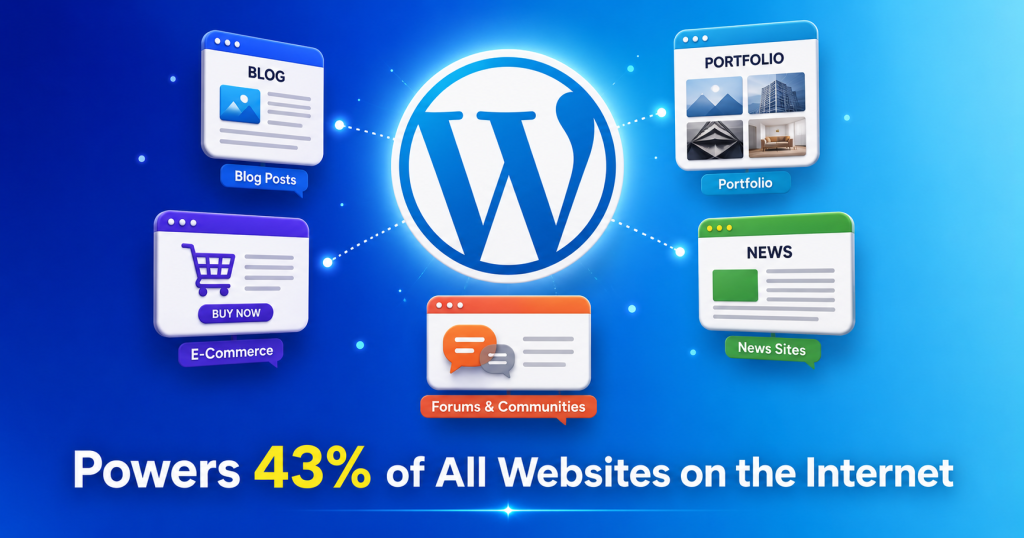
WordPress is the most popular website-building platform in the world. Right now, as you read this, over 43% of all websites on the internet — more than 810 million websites — are powered by WordPress.
Whether you want to start a personal blog, build an online store, create a professional portfolio, launch a news website, or build an entire digital business — WordPress makes it possible, even if you have never written a single line of code in your life.
In this complete, beginner-friendly guide, you will learn exactly what WordPress is, how it works, the difference between WordPress.com and WordPress.org, what themes and plugins are, how it compares to other website builders, and how to start building your own WordPress website in 2026.
Table of Contents
What Is WordPress? (Definition)
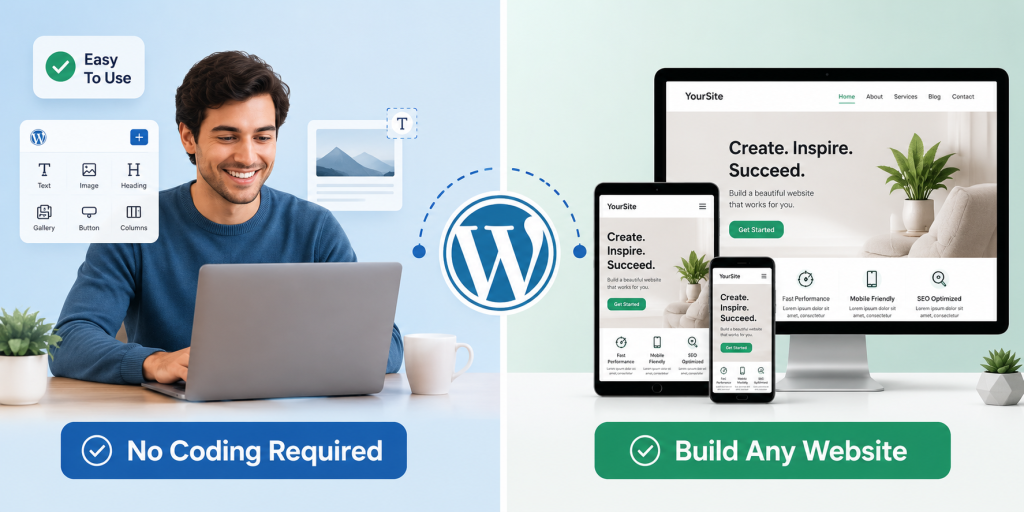
WordPress is a free, open-source Content Management System (CMS) that allows anyone — even complete beginners with no technical skills — to create, manage, and publish website content without writing code.
Originally launched as a blogging platform in 2003, WordPress has evolved into the world’s most versatile website-building platform. Today it powers everything from simple personal blogs to major news outlets (BBC America, The New Yorker, TechCrunch), enterprise corporate websites, online stores, membership platforms, and complex web applications.
Simple Definition:
WordPress is the software (CMS) you install on a web hosting server to build and manage any type of website — without needing to know how to code.
Technical Definition:
WordPress is a free, open-source content management system written in PHP and paired with a MySQL or MariaDB database. It was released under the GPLv2 licence, meaning anyone can use, modify, and distribute the software freely.
A Simple Analogy:
Think of WordPress like Microsoft Word, but for websites. Just as Word lets you write, format, and publish documents without knowing typography or print design, WordPress lets you create, design, and publish websites without knowing HTML, CSS, or programming.
A Brief History of WordPress
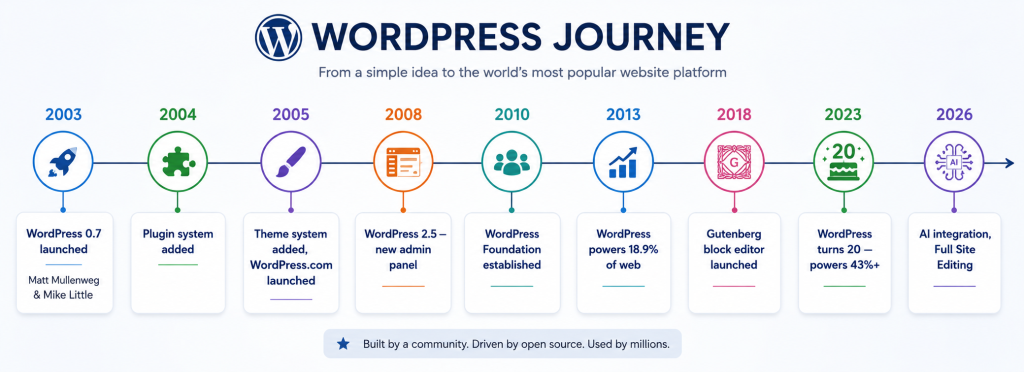
Understanding WordPress’s history helps explain why it became so dominant:
2003 — WordPress Is Born
WordPress was created by Matt Mullenweg and Mike Little as a fork of an existing blogging software called b2/cafelog. Version 0.7 was released on May 27, 2003. It was simple, elegant, and had one clear mission: make personal publishing on the web accessible to everyone.
2004–2005 — Plugin & Theme Systems
In 2004, WordPress introduced its plugin architecture — allowing developers to extend WordPress’s functionality without modifying its core code. In 2005, the theme system was introduced, letting designers create visual templates that users could install with a click. These two decisions transformed WordPress from a simple blogging tool into a platform.
2005 — WordPress.com Launches
Automattic (Matt Mullenweg’s company) launched WordPress.com — a hosted version of WordPress that required no technical setup. This made WordPress accessible to millions of non-technical users who just wanted to start a blog without managing a server.
2018 — The Gutenberg Block Editor
In 2018, WordPress released version 5.0 with Gutenberg — a revolutionary new block-based content editor that replaced the classic text editor. Gutenberg lets users build rich page layouts using drag-and-drop ‘blocks’ for text, images, videos, buttons, columns, and more.
2026 — WordPress Today
WordPress 6.x introduced Full Site Editing (FSE), allowing users to design their entire website — headers, footers, sidebars, and pages — using the block editor. With AI integration and thousands of Gutenberg block patterns, WordPress in 2026 is more powerful and user-friendly than ever.
WordPress.com vs. WordPress.org — The Critical Difference
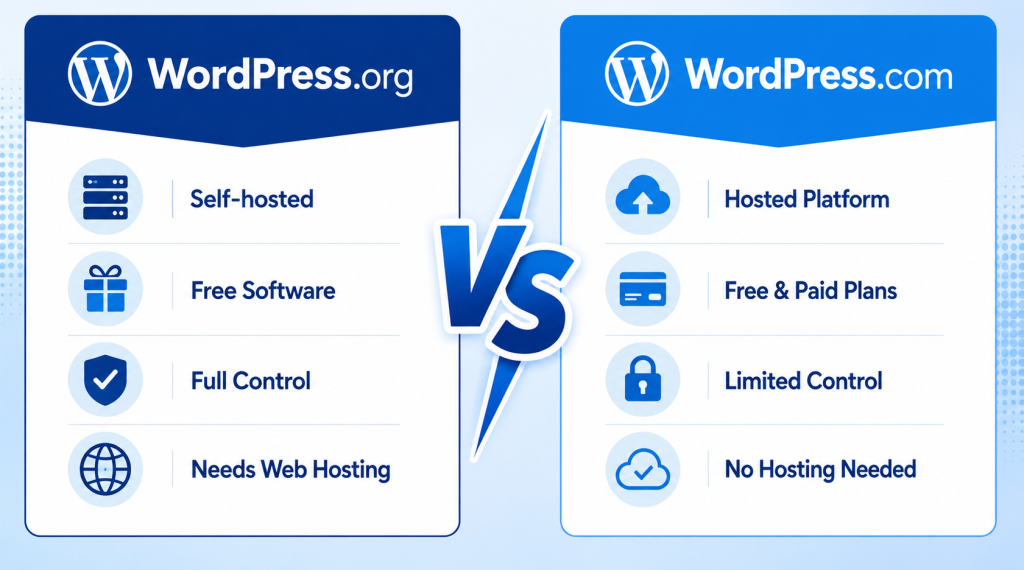
This is the MOST important distinction that confuses beginners. There are two completely different products that both carry the ‘WordPress’ name:
| Factor | WordPress.org (Self-Hosted) | WordPress.com (Hosted) |
|---|---|---|
| What it is | Free, open-source software you download and install | Hosted blog/website platform run by Automattic |
| Hosting | You provide your own web hosting | Hosting is provided by Automattic |
| Cost | Software is FREE; you pay for hosting ($2–$15/mo) | Free plan + paid plans ($4–$45+/month) |
| Control | Complete — do anything you want | Limited — especially on free/cheaper plans |
| Custom Domain | Yes — any domain name you choose | Paid plans only; free plan gets subdomain |
| Plugins | Install any of 60,000+ free/paid plugins | Limited; Business plan+ only |
| Themes | Any theme — free or premium | Limited selection; full access on paid plans |
| Monetisation | Complete freedom — ads, e-commerce, membership | Restrictions on lower plans |
| Recommended For | Businesses, professionals, anyone serious about web | Casual bloggers wanting zero technical setup |
Bottom Line: For a professional website, always use WordPress.org (self-hosted). When people say ‘build a website with WordPress,’ they almost always mean WordPress.org.
💡 PRO TIP: For expantrix.com and any serious website, use WordPress.org installed on a quality web hosting provider. This gives you full control, access to all plugins/themes, and the ability to grow without platform restrictions.
How Does WordPress Work?
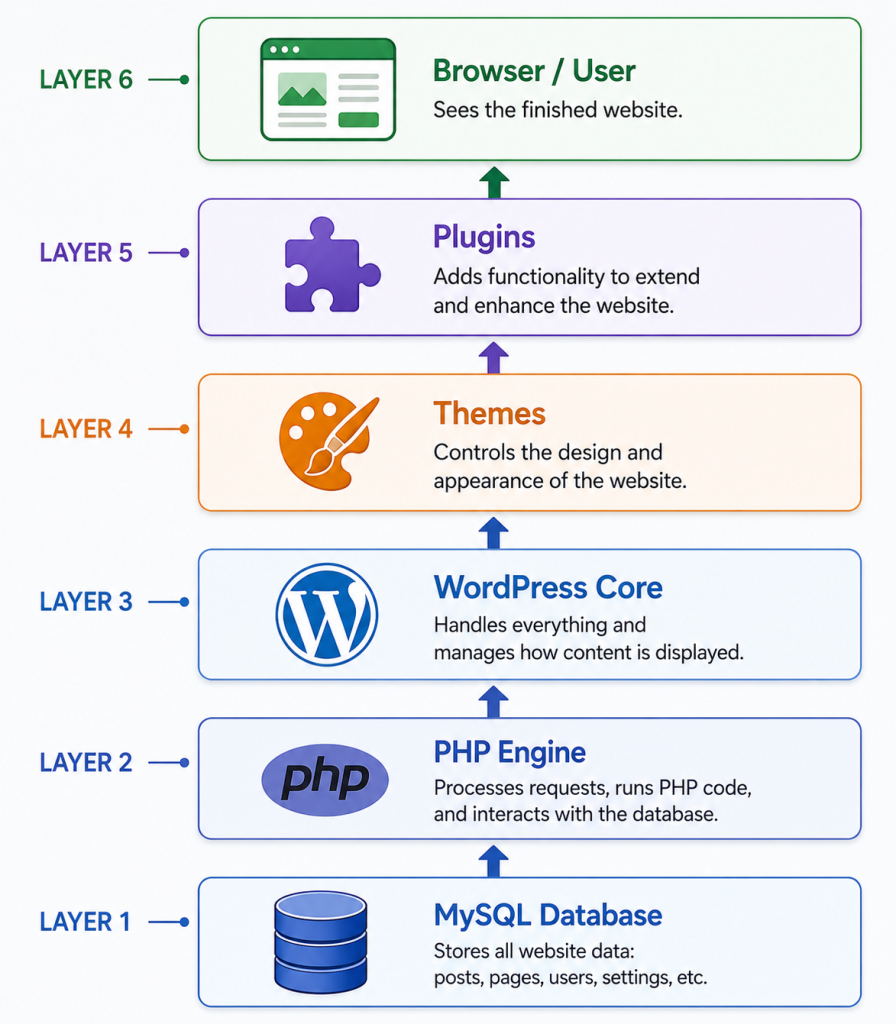
WordPress works as a layered system. Understanding these layers helps you understand why WordPress is so flexible and powerful:
Layer 1 — The Database (MySQL)
All your website’s content — posts, pages, comments, user data, settings, and more — is stored in a MySQL database. The database is the permanent memory of your WordPress website.
Layer 2 — PHP (The Processing Engine)
WordPress is written in PHP, a server-side programming language. When a visitor requests a page, PHP retrieves the relevant content from the database, applies the theme’s design, processes any active plugins, and assembles the final HTML page to send to the browser.
Layer 3 — WordPress Core
The WordPress core is the foundational software that manages everything: the user interface, content editing, media library, user roles, permalink structure, the REST API, and the update system. The core is maintained by hundreds of volunteer contributors worldwide.
Layer 4 — Themes (Design & Appearance)
WordPress themes control how your website looks — the layout, colours, fonts, header, footer, and overall visual design. Changing a theme completely transforms your site’s appearance without affecting your content. The WordPress.org theme directory has 10,000+ free themes.
Layer 5 — Plugins (Extended Functionality)
WordPress plugins add new features and functionality to your site. With 60,000+ free plugins in the WordPress.org plugin directory, you can add almost any feature: an SEO tool, a contact form, an online store, a booking system, a membership area, social sharing buttons, and much more.
When You Visit a WordPress Website
- Your browser sends a request to the web server.
- PHP receives the request and retrieves content from the MySQL database.
- WordPress applies the active theme’s templates and styling.
- Active plugins add their functionality (SEO tags, contact forms, caching, etc.).
- The fully assembled HTML page is sent to your browser.
- Your browser renders and displays the website.
WordPress Themes — What Are They?
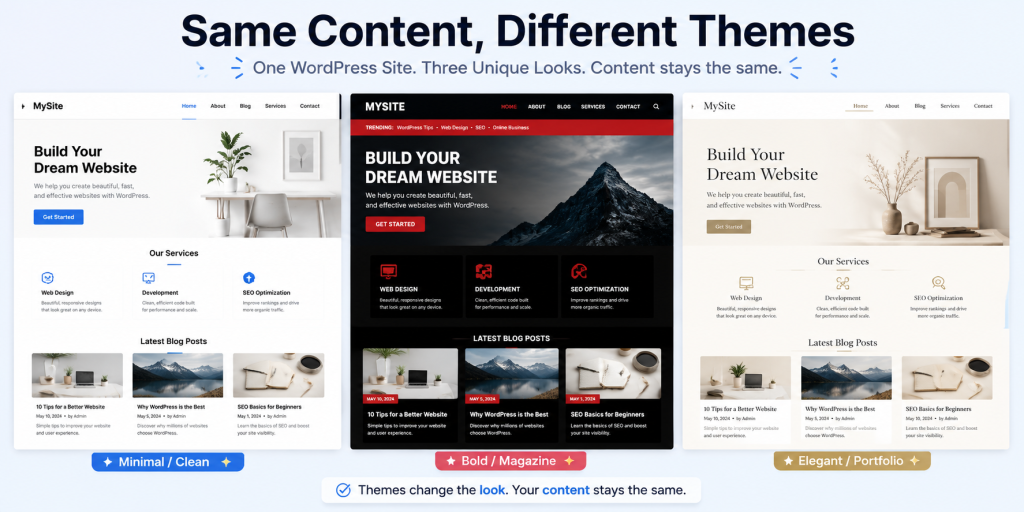
A WordPress theme is a collection of template files that control the visual appearance of your website. It defines the layout, typography, colour scheme, header design, footer design, and overall look and feel — without affecting the underlying content.
Free vs. Premium Themes
| Free WordPress Themes | Premium WordPress Themes |
|---|---|
| Available in the WordPress.org theme directory | Purchased from marketplaces like ThemeForest |
| Great for beginners and simple websites | More features, better design, priority support |
| Usually less customisation options | Extensive customisation options |
| Community support (forums) | Dedicated developer support |
| Cost: FREE | Cost: $29–$200+ (one-time or annual) |
| Examples: Twenty Twenty-Four, Astra (free) | Examples: Divi, Avada, GeneratePress Pro |
Top WordPress Themes in 2026
- Astra — fastest-loading, highly customisable, free + premium ($59/year)
- GeneratePress — lightweight, SEO-friendly, developer favourite
- Divi — drag-and-drop page builder theme, most popular premium theme
- Kadence — modern, full site editing support, excellent free version
- Hello Elementor — minimal base theme for Elementor page builder users
WordPress Plugins — What Are They?
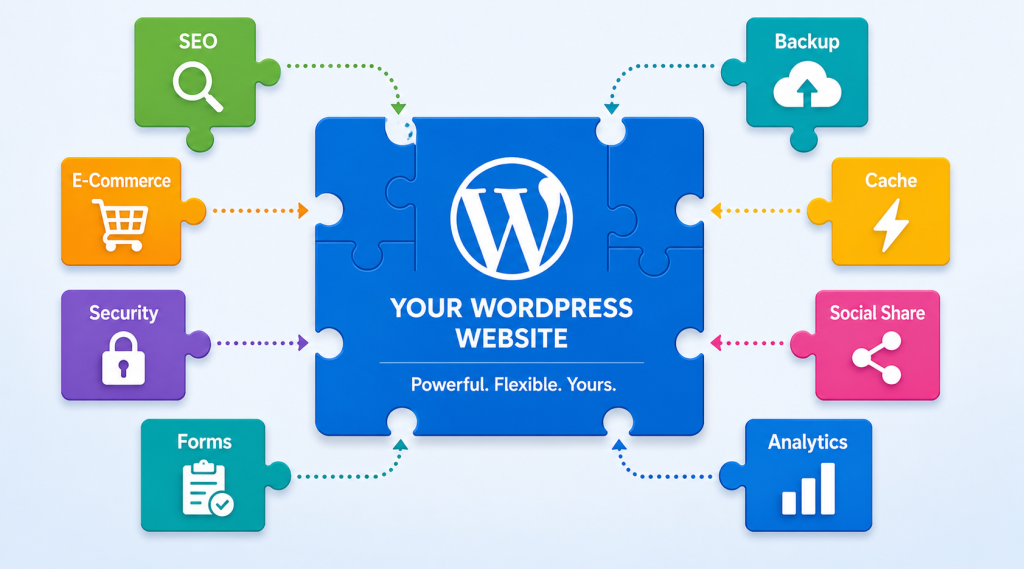
A WordPress plugin is a piece of software that adds specific features or functionality to your WordPress website. Think of plugins as apps for your website — just as you download apps to add features to your smartphone, you install plugins to add features to your WordPress site.
Essential WordPress Plugins in 2026
| Plugin Category | Best Plugin | What It Does | Cost |
|---|---|---|---|
| SEO | RankMath | On-page SEO, schema, sitemap, redirects | Free / Premium |
| Analytics | Google Site Kit | Google Analytics + Search Console in WP | Free |
| Security | Wordfence | Firewall, malware scanner, login security | Free / Premium |
| Caching / Speed | WP Rocket | Page caching, minification, lazy load | Paid ($59/year) |
| Backup | UpdraftPlus | Automated backups to cloud storage | Free / Premium |
| E-Commerce | WooCommerce | Full online store functionality | Free + extensions |
| Forms | WPForms | Contact forms, surveys, lead capture | Free / Premium |
| Page Builder | Elementor | Drag-and-drop visual page design | Free / Premium |
| Image Optimise | Smush | Automatic image compression and WebP | Free / Premium |
| Social Share | Social Warfare | Beautiful social sharing buttons | Free / Premium |
⚠️ IMPORTANT: More plugins ≠ better website. Each plugin adds code that runs on every page load. Only install plugins you genuinely need. Having 30+ active plugins can significantly slow your site and create security vulnerabilities.
The WordPress Dashboard — A Quick Tour
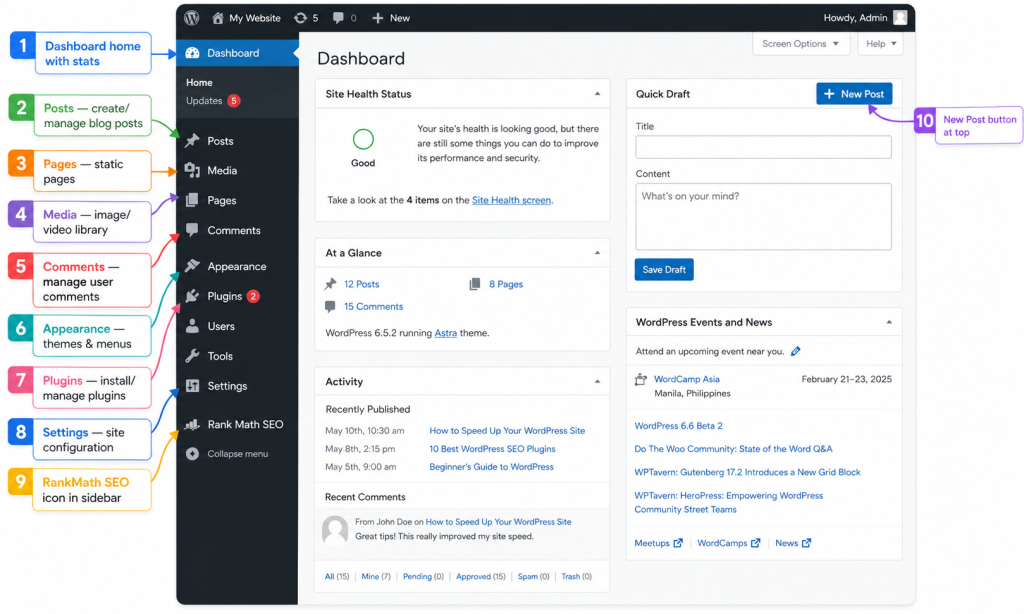
The WordPress dashboard (also called wp-admin) is the backend control panel where you manage everything on your website. Here is a quick overview of the main sections:
| Dashboard Section | What You Can Do Here |
|---|---|
| Dashboard (Home) | Overview of recent activity, quick stats, WordPress news and updates |
| Posts | Create, edit, manage, and organise blog posts by categories and tags |
| Pages | Create and manage static pages (About, Contact, Services, Privacy Policy) |
| Media | Upload, organise, and manage images, videos, PDFs, and other files |
| Comments | Approve, reply to, edit, or delete user comments on your posts |
| Appearance | Change themes, customise menus, edit widgets, use the site editor (FSE) |
| Plugins | Search, install, activate, deactivate, and delete plugins |
| Users | Add/manage user accounts and assign roles (Admin, Editor, Author, Contributor, Subscriber) |
| Tools | Import/export content, site health check, privacy tools |
| Settings | Configure site title, tagline, reading settings, permalinks, and more |
| RankMath (SEO) | Manage SEO settings, schema, sitemap, keyword rankings, Search Console data |
Types of Websites You Can Build with WordPress
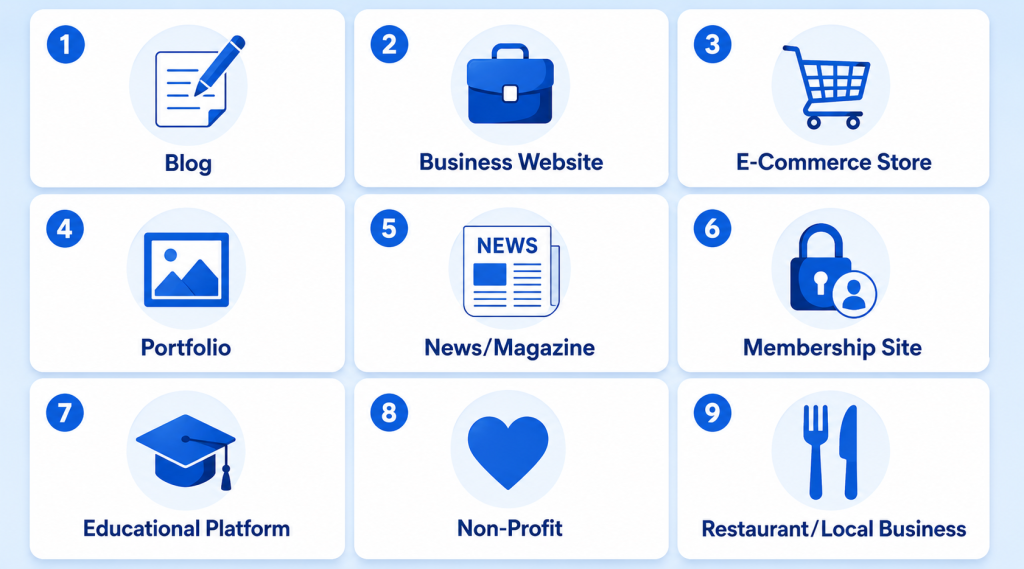
WordPress’s flexibility is its greatest strength. Here is a breakdown of the website types WordPress handles brilliantly:
| Website Type | WordPress Solution | Famous Examples |
|---|---|---|
| Blog / Content Site | Built-in post system, categories, tags | TechCrunch, Smashing Magazine |
| Business / Corporate | Pages, contact forms, services, landing pages | BBC America, Sony Music |
| E-Commerce Store | WooCommerce plugin (free) + payment gateways | Many small-large online stores |
| Portfolio | Portfolio themes + gallery plugins | Designer, photographer, agency sites |
| News / Magazine | Magazine themes, multi-author support | The New Yorker, Time.com |
| Membership / Subscription | MemberPress, LearnDash, Restrict Content Pro | Course sites, paid communities |
| Online Learning (LMS) | LearnDash, LifterLMS, Tutor LMS | Course creators, universities |
| Restaurant / Local Business | Booking plugins, menu builders, Google Maps | Local service businesses |
| Non-Profit / Charity | Donation plugins (Give), event management | NGOs, community organisations |
| Multilingual Sites | WPML or Polylang plugins | International businesses |
WordPress vs. Other Website Builders
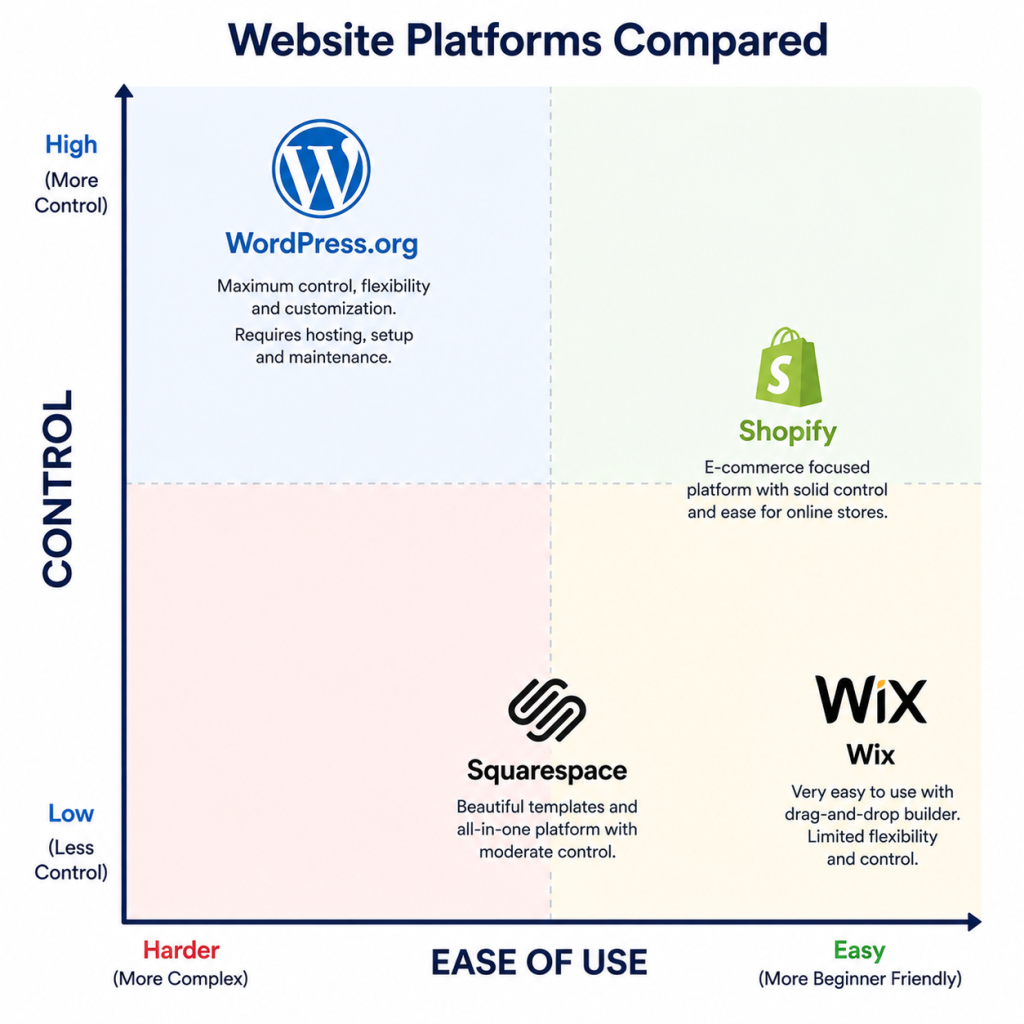
| Factor | WordPress.org | Wix | Squarespace | Shopify |
|---|---|---|---|---|
| Ease of Use | Moderate | Very Easy | Easy | Easy |
| Flexibility | Unlimited | Limited | Moderate | E-commerce focused |
| Cost | $2–$15/mo + hosting | $16–$45+/mo | $16–$52+/mo | $39–$399+/mo |
| SEO Capabilities | Excellent | Basic-Good | Good | Good |
| E-Commerce | Excellent (WooComm) | Limited | Good (limited) | Excellent |
| Design Freedom | Unlimited | Good | Good (restricted) | Moderate |
| Plugin/App Ecosystem | 60,000+ plugins | 300+ apps | 30+ extensions | 8,000+ apps |
| Ownership | Full ownership | Platform-dependent | Platform-dependent | Platform-dependent |
| Best For | Everyone serious | Simple sites | Creative/portfolio | Pure e-commerce |
The Bottom Line: WordPress.org wins on flexibility, cost, SEO, and long-term control. Wix and Squarespace win on initial ease of setup. Shopify wins for pure e-commerce with no technical desire.
Pros and Cons of WordPress
Advantages of WordPress ✅
- Free & Open Source — the core software costs nothing; huge community maintains it
- Complete Control — host anywhere, install anything, customise everything
- Unmatched Flexibility — from simple blogs to complex enterprise applications
- 60,000+ Plugins — add virtually any feature for free or at low cost
- 10,000+ Themes — customise your site’s appearance without coding
- Excellent SEO — with RankMath or Yoast, WordPress is the SEO-friendliest platform
- Massive Community — thousands of tutorials, forums, developers, and resources
- Scalability — WordPress scales from a 10-visitor blog to a billion-page-view news site
- Multilingual Support — WPML and Polylang make multilingual sites straightforward
- Regular Updates — WordPress core is constantly improved for security and performance
Disadvantages of WordPress ⚠️
- Learning Curve — more to learn upfront compared to Wix or Squarespace drag-and-drop builders
- Requires Hosting — you must purchase web hosting separately ($2–$15/month)
- Maintenance Responsibility — you must manage updates, backups, and security yourself
- Plugin Conflicts — poor-quality or incompatible plugins can break your site
- Performance Requires Optimisation — out of the box, WordPress needs caching and image optimisation to be fast
- Security if Neglected — WordPress is a popular target for hackers due to its ubiquity; proper security practices are essential
Is WordPress Free?
This is one of the most common questions about WordPress. The short answer: Yes, the WordPress software itself is completely free. But running a WordPress website has some associated costs.
| Cost Component | Cost Range | Notes |
|---|---|---|
| WordPress Software | FREE | Always free — open-source, no licence fee ever |
| Web Hosting | $2–$15/month | Required to make your site live on the internet |
| Domain Name | $10–$15/year | Your website address (e.g., yoursite.com) |
| WordPress Theme | $0–$200+ | Free themes available; premium themes $30–$200 |
| WordPress Plugins | $0–$500+/year | Most essential plugins have excellent free versions |
| SSL Certificate | $0–$100/year | Usually free via Let’s Encrypt (included by most hosts) |
| TOTAL (Starter Budget) | ~$30–$60/year | Hosting + domain — sufficient for most beginners |
| TOTAL (Professional) | ~$200–$600/year | Premium theme + few paid plugins + quality hosting |
💡 PRO TIP: A complete WordPress website — with a custom domain, reliable hosting, free SSL, and a quality free theme — can be built and maintained for as little as $30–$60 per year. This is dramatically cheaper than Wix ($192+/year), Squarespace ($192+/year), or Shopify ($468+/year).
WordPress and SEO — Why It’s the Best Platform for Rankings
WordPress is widely considered the best CMS for SEO, and for good reason. Here is why WordPress gives you a natural SEO advantage:
1. Clean, Semantic HTML Output
WordPress generates clean, well-structured HTML with proper heading hierarchy (H1, H2, H3), which helps search engines understand your content structure.
2. RankMath & Yoast — World-Class SEO Plugins
No other platform matches WordPress’s SEO plugin ecosystem. RankMath (used on expantrix.com) and Yoast SEO allow you to control every on-page SEO element: title tags, meta descriptions, canonical URLs, XML sitemaps, schema markup, social open graph tags, redirect management, and more.
3. Customisable URLs (Permalinks)
WordPress allows complete control over your URL structure. SEO-friendly URLs (like /what-is-wordpress/ instead of /?p=123) can be configured with one click in Settings → Permalinks.
4. Schema Markup / Structured Data
RankMath (your existing plugin) automatically adds schema markup — Article, FAQ, How-To, BreadcrumbList, and more — that helps your pages qualify for Google rich results (FAQ snippets, how-to snippets, knowledge panels).
5. XML Sitemaps
RankMath automatically generates and updates your XML sitemap, making it easy to submit to Google Search Console (via Google Site Kit) to ensure all your pages are indexed.
6. Core Web Vitals Optimisation
With the right hosting, caching plugin (WP Rocket), and image optimisation plugin (Smush), a WordPress site can achieve excellent Core Web Vitals scores — LCP, INP, and CLS — which are direct Google ranking factors.
How to Start a WordPress Website — Step-by-Step
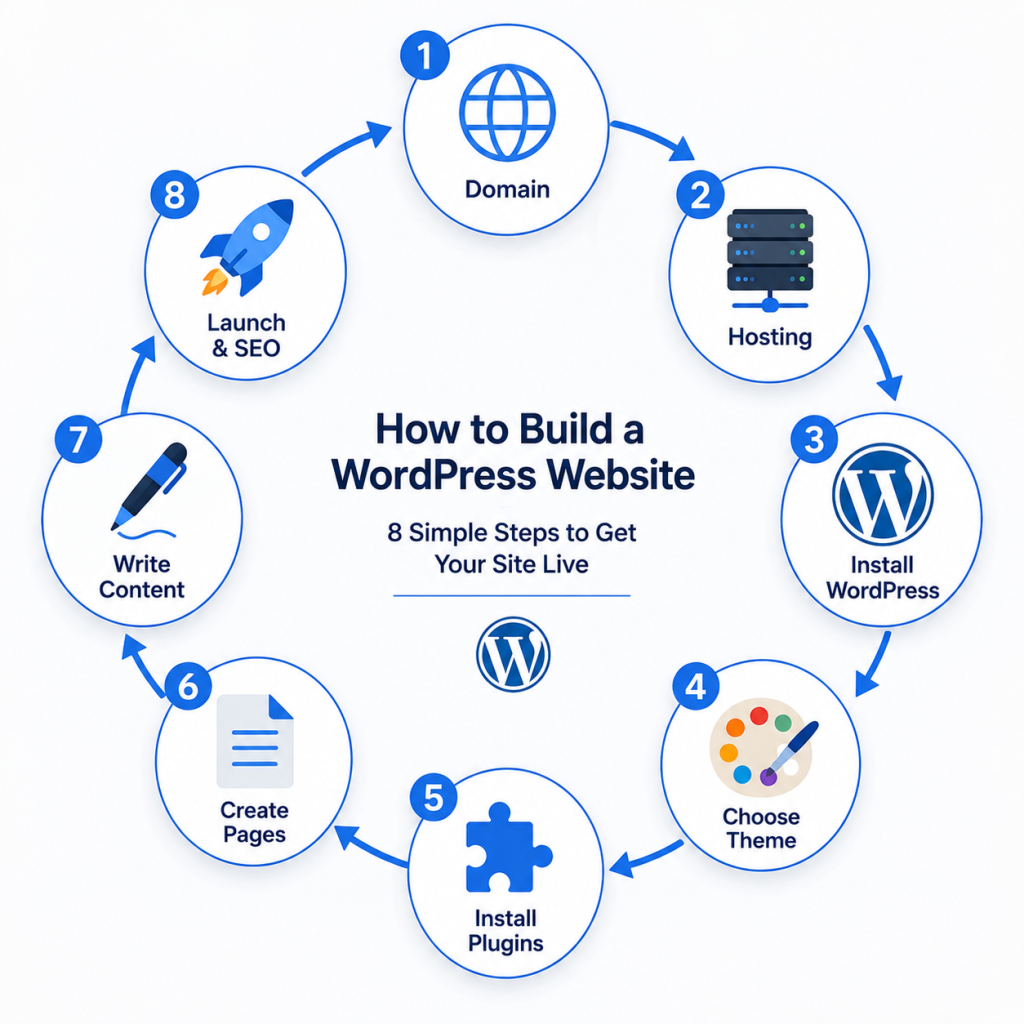
Getting a WordPress website live in 2026 is straightforward. Here is the complete step-by-step process:
- Step 1 — Register a Domain Name: Choose a short, memorable domain name that reflects your brand or topic. Register it at a domain registrar (Namecheap, Google Domains) or directly through your hosting provider.
- Step 2 — Purchase Web Hosting: Sign up for a web hosting plan. For beginners, shared hosting from SiteGround or Bluehost is ideal. For better performance, use cloud hosting (Cloudways) or managed WordPress hosting (Kinsta).
- Step 3 — Install WordPress: Most hosting providers offer one-click WordPress installation via cPanel or their own dashboard. Click install, fill in your site title and admin details, and WordPress is ready in under 5 minutes.
- Step 4 — Choose and Install a Theme: Go to Appearance → Themes → Add New. Search for a theme that suits your website type. Click Install, then Activate. Recommended free themes: Astra, GeneratePress, Kadence.
- Step 5 — Install Essential Plugins: Install RankMath (SEO), Google Site Kit (Analytics), WP Rocket or W3 Total Cache (speed), UpdraftPlus (backups), and Wordfence (security). Less is more — only install what you genuinely need.
- Step 6 — Create Key Pages: Create essential pages — Home, About, Contact, Privacy Policy, and any service/product pages. Go to Pages → Add New.
- Step 7 — Configure Settings: Set your site title and tagline (Settings → General), configure your permalink structure (Settings → Permalinks → Post name), and connect Google Search Console via RankMath or Google Site Kit.
- Step 8 — Create Your First Blog Post: Go to Posts → Add New. Write your first article using the Gutenberg block editor. Follow the SEO guidelines for each post using RankMath’s content analysis.
- Step 9 — Submit Your Sitemap to Google: In RankMath, your sitemap is at yoursite.com/sitemap_index.xml. Submit this to Google Search Console to request indexing.
- Step 10 — Publish and Promote: Your WordPress website is live! Share your first content on social media, build backlinks, and maintain a consistent publishing schedule.
WordPress Security — Keeping Your Site Safe
Because WordPress powers 43% of the internet, it is a frequent target for hackers. The good news: a properly secured WordPress site is extremely difficult to hack. Here are the essential security practices:
- Keep WordPress, Themes, and Plugins Updated: Most WordPress hacks exploit outdated software vulnerabilities. Enable automatic minor updates and manually update major releases promptly.
- Use Strong Passwords and Two-Factor Authentication (2FA): Use a unique, complex password for your admin account. Enable 2FA via the Wordfence plugin.
- Install a Security Plugin: Wordfence (free version) provides a web application firewall (WAF), malware scanner, and login security features.
- Use a Reliable Hosting Provider: Good hosting providers (SiteGround, Kinsta, Cloudways) include server-level security, malware scanning, and firewalls.
- Change the Default Login URL: By default, WordPress admin is at /wp-admin. Use WPS Hide Login (free plugin) to change this to a custom URL.
- Limit Login Attempts: Prevent brute-force attacks by limiting the number of failed login attempts.
- Install SSL/HTTPS: Ensure your site runs on HTTPS — encrypts data between server and browser, and is a Google ranking factor.
- Take Regular Backups: Use UpdraftPlus to schedule automatic daily or weekly backups to cloud storage (Google Drive, Dropbox, Amazon S3).
Frequently Asked Questions (FAQ)
Q1: What is WordPress used for?
WordPress is used to build and manage any type of website — personal blogs, business websites, online stores, portfolios, news sites, membership platforms, online courses, and much more. Over 43% of all websites on the internet use WordPress.
Q2: Is WordPress free to use?
Yes, the WordPress software (downloaded from WordPress.org) is completely free. You will need to pay for web hosting ($2–$15/month) and a domain name ($10–$15/year) to make your website accessible online. Many quality themes and plugins also have excellent free versions.
Q3: Do I need to know coding to use WordPress?
No coding knowledge is required to use WordPress for a standard website. With modern themes and page builders like Elementor, you can design professional websites using visual drag-and-drop interfaces. Basic HTML/CSS knowledge is helpful for advanced customisation but not required.
Q4: What is the difference between WordPress.com and WordPress.org?
WordPress.org is the free, open-source software you install on your own web hosting. You have complete control and full access to all themes and plugins. WordPress.com is a hosted platform run by Automattic — simpler but with significant restrictions on free/cheap plans. For professional use, always choose WordPress.org (self-hosted).
Q5: Is WordPress good for SEO?
WordPress is widely considered the best CMS for SEO. Combined with RankMath or Yoast SEO plugin, it gives you complete control over title tags, meta descriptions, schema markup, XML sitemaps, canonical URLs, and more. WordPress generates clean HTML and integrates seamlessly with Google Search Console via Google Site Kit.
Q6: How many websites use WordPress?
As of 2026, WordPress powers over 43% of all websites on the internet — more than 810 million websites. Among websites that use a CMS (Content Management System), WordPress has approximately 65% market share.
Q7: Is WordPress safe and secure?
WordPress itself is very secure when properly maintained. Most WordPress security issues arise from outdated software, weak passwords, or poor-quality plugins. Following best practices — keeping everything updated, using a security plugin like Wordfence, strong passwords with 2FA, regular backups, and quality hosting — makes WordPress highly secure.
Q8: WordPress vs. Wix — which is better?
It depends on your goals. Wix is easier to start with (drag-and-drop, no hosting setup). WordPress requires a bit more setup but offers vastly superior SEO capabilities, flexibility, plugin ecosystem, and long-term value. For any serious website — especially one focused on SEO and growth — WordPress is the better choice.
Conclusion
WordPress is not just a website builder — it is the foundation of the modern internet. Powering over 43% of all websites, from personal blogs to Fortune 500 companies, WordPress has proven itself as the most versatile, scalable, and SEO-friendly platform ever created.
For anyone building a website in 2026 — whether it is your first blog, a business website, an online store, or a content hub like expantrix.com — WordPress (self-hosted via WordPress.org) is the platform that gives you the most control, the best SEO capabilities, the lowest cost, and the greatest flexibility to grow.
The combination of WordPress + quality web hosting + RankMath + Google Site Kit + great content is the formula for a successful, Google-ranking website. With consistent effort and the right knowledge, WordPress can take your online presence from zero to a thriving digital business.
At Expantrix.com, we break down everything you need to know — from WordPress and web hosting to SEO, web development, and digital marketing — in clear, actionable guides.
Ready to build your WordPress website? Explore more guides on Expantrix.com!